Change or reset your password
Set a new password for your Pulsar account, whether you forgot it or want to change it.
You can change your Pulsar password for security reasons, or reset it if you forget it. Either way, you do it from the sign-in page, and you need access to the email address the account was registered with, because Pulsar sends a verification code there.
Set a new password
Go to app.pulsarml.com on your computer or mobile device.
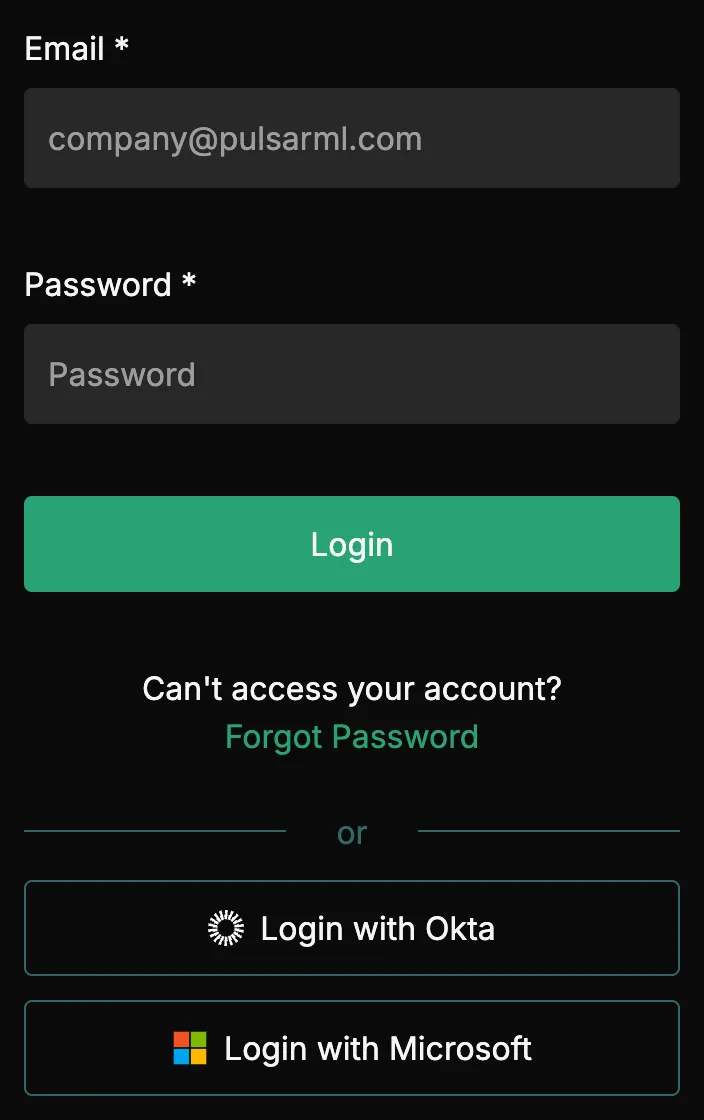
On the sign-in page, under Can't access your account?, click Forgot Password.
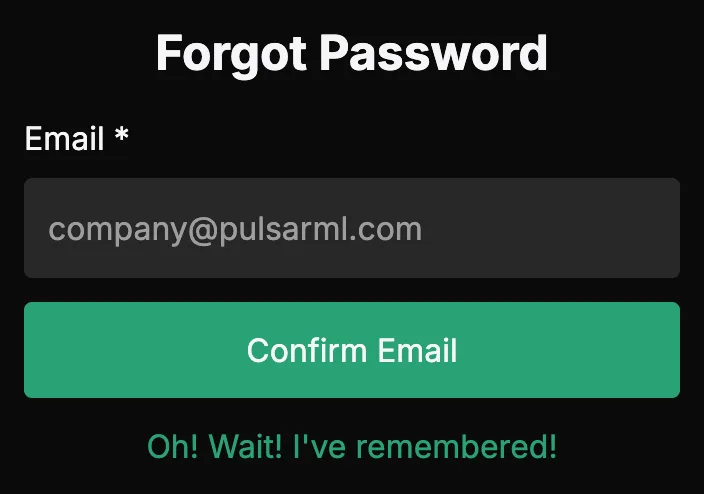
On the Forgot Password page, enter your email address and click Confirm Email. If you remember your password after all, click Oh! Wait! I've remembered! to go back to the sign-in page.
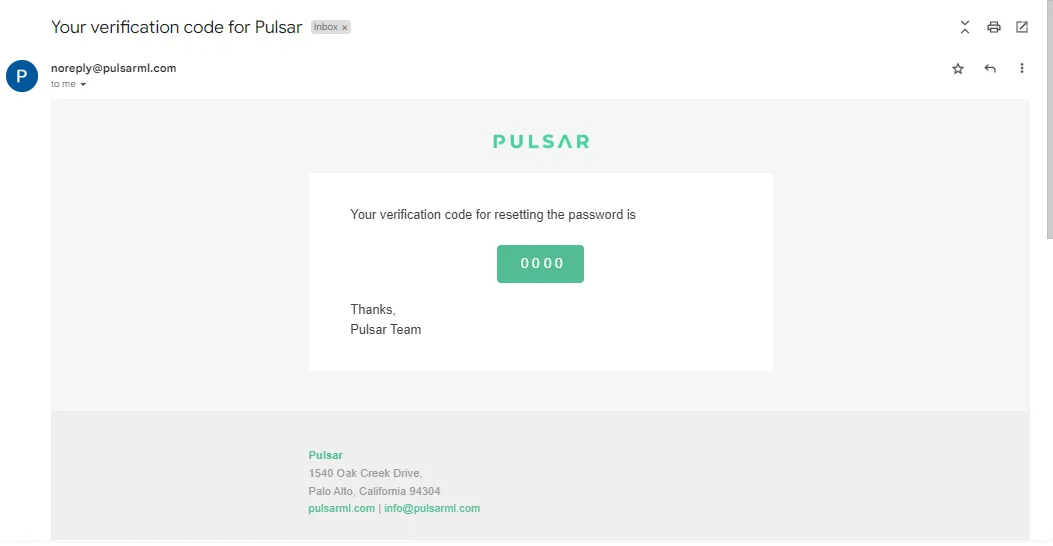
Pulsar sends you an email with a verification code to authenticate your request.
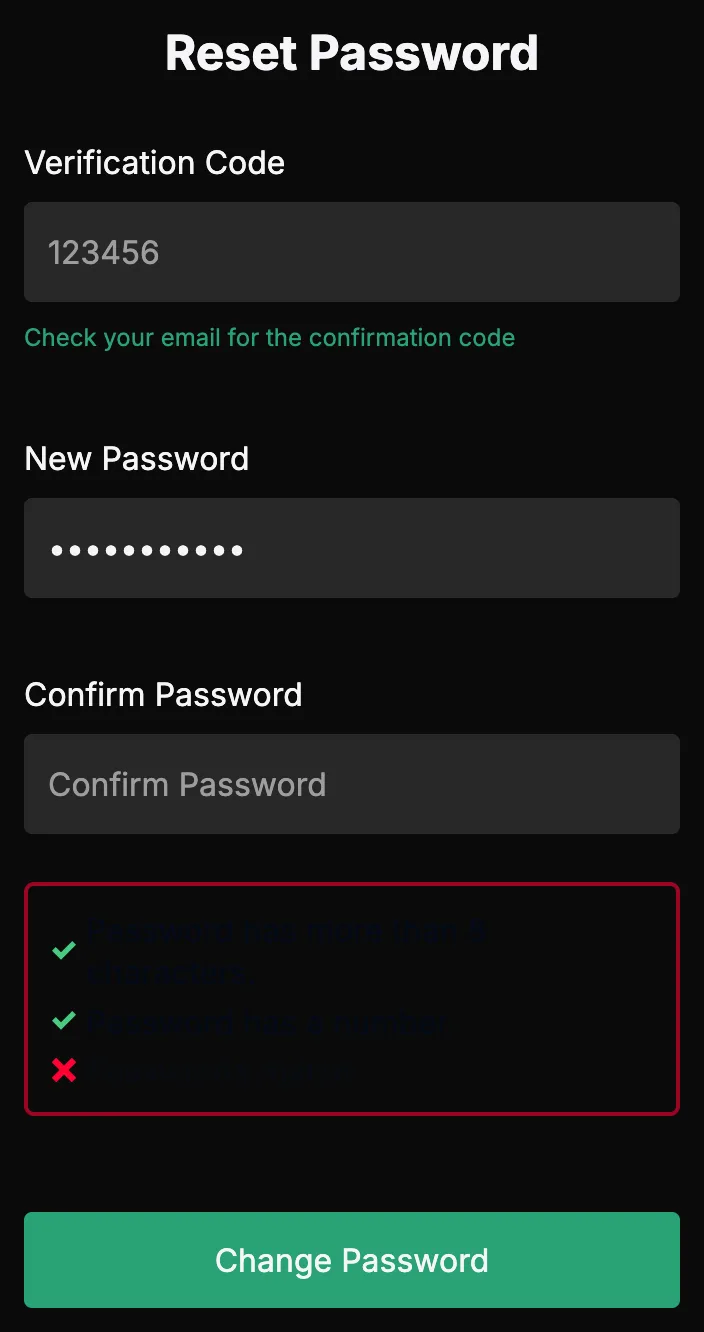
On the Reset Password page, enter the code you received in Verification Code, type your new password in New Password and again in Confirm Password, then click Change Password.
As you type, a checklist below the fields shows which password requirements you already meet.
Your new password is active as soon as you create it. Use it the next time you sign in.
Your new password must:
- Have at least 8 characters.
- Contain a number.
- Match in both fields (new and confirm).
If you have trouble changing your password or need help, contact your Customer Success representative or raise a support ticket from the app.