Raise a support ticket
Ask Pulsar's support team for help from the desktop app or the mobile app, with the details that get your ticket solved faster.
You can raise a support ticket from inside Pulsar, on your computer or on a mobile device. The more information you share with the team, the faster your ticket is classified and your problem solved.
What to include
For tickets about machine stops, include:
- The names in Pulsar of the affected machines
- A contact phone number
- A description of the problem
- The date and time the problem was detected. You can attach examples.
For tickets about software problems, include:
- A detailed description of the problem
- Images (screenshots, videos, etc.) that show the problem
For example:
Good morning Pulsar team, I'm having issues with MACHINE 1. I can't correctly see today's stops at 3:00 PM and 3:16 PM. At those times the machine was producing in Pulsar, but it was stopped on the plant floor. You can reach me at 55 5555 5555.
Raise a ticket from your computer
Sign in to Pulsar.
Click your profile button (your initials) at the top right, and select Support Center in the menu that opens.
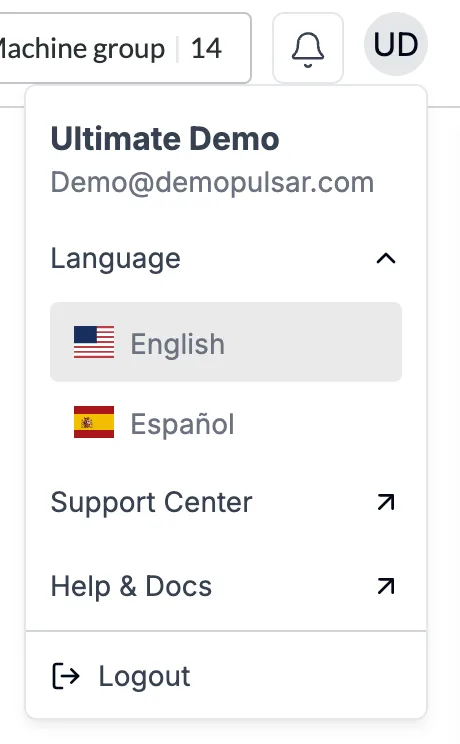
The Support Ticket page opens, with the Raise support ticket form. Name and Email come filled in, and you can add a Phone number.
Under Choose the category associated with your problem, select Installation, Sensor Data, Software Problem or Feature Request. Installation is selected by default.
Describe the problem in detail in Description, attach any related files with SELECT A FILE, and click SUBMIT.
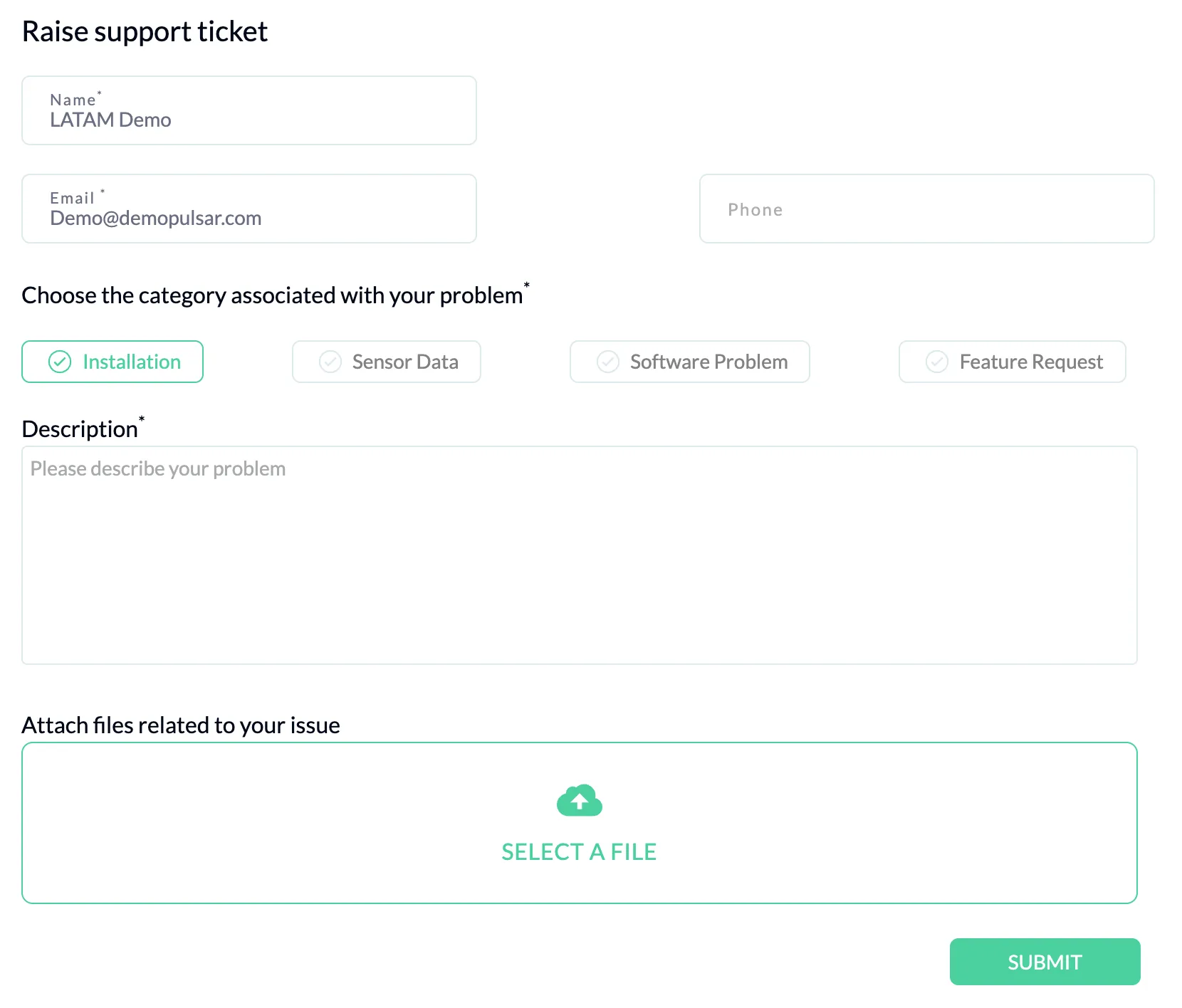
Once you submit your ticket, you get the answer and follow-up at your Pulsar user's email address. Keep an eye out for updates.
Raise a ticket from a mobile device
Sign in to the Pulsar mobile app at mobile.pulsarml.com.
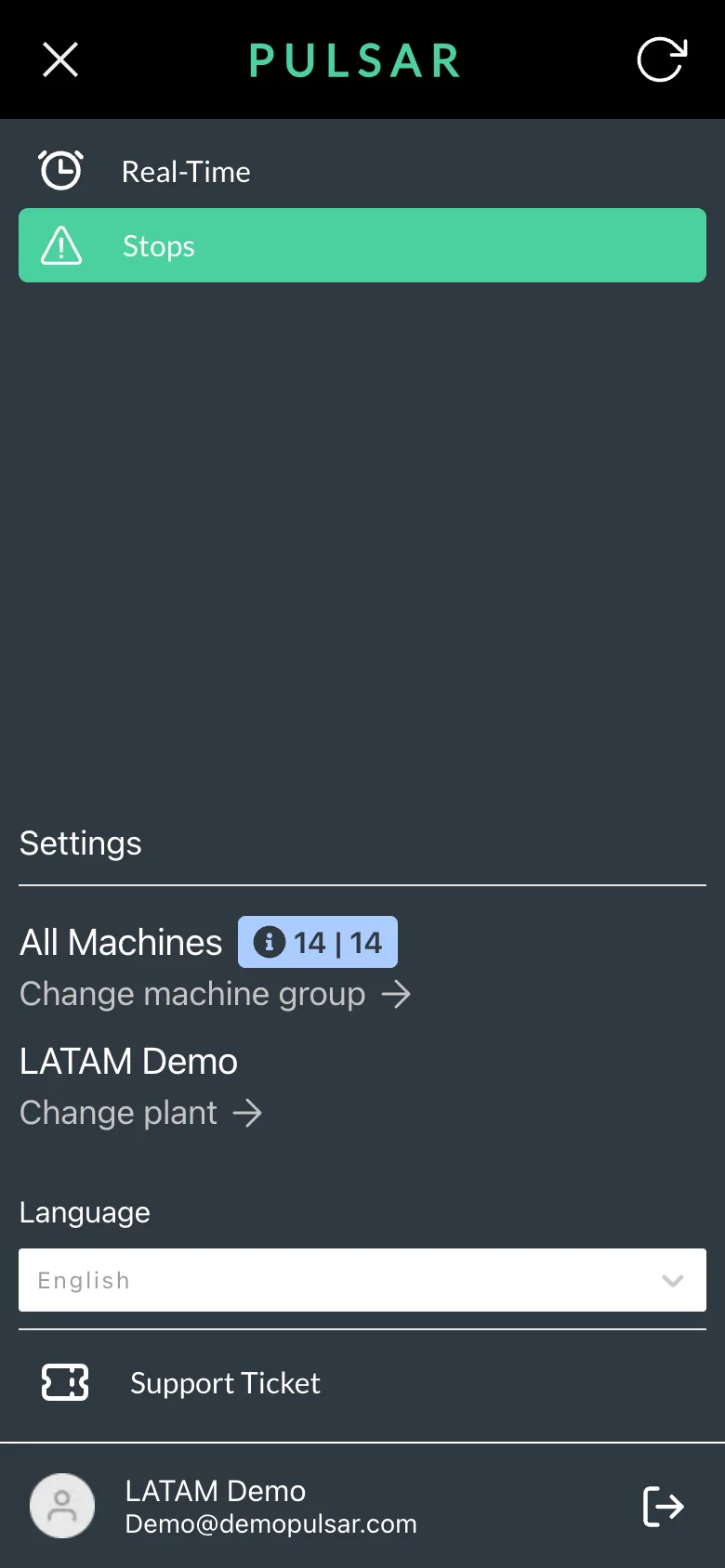
Tap the menu button at the top left, then tap Support Ticket, at the bottom of the menu just above your user.
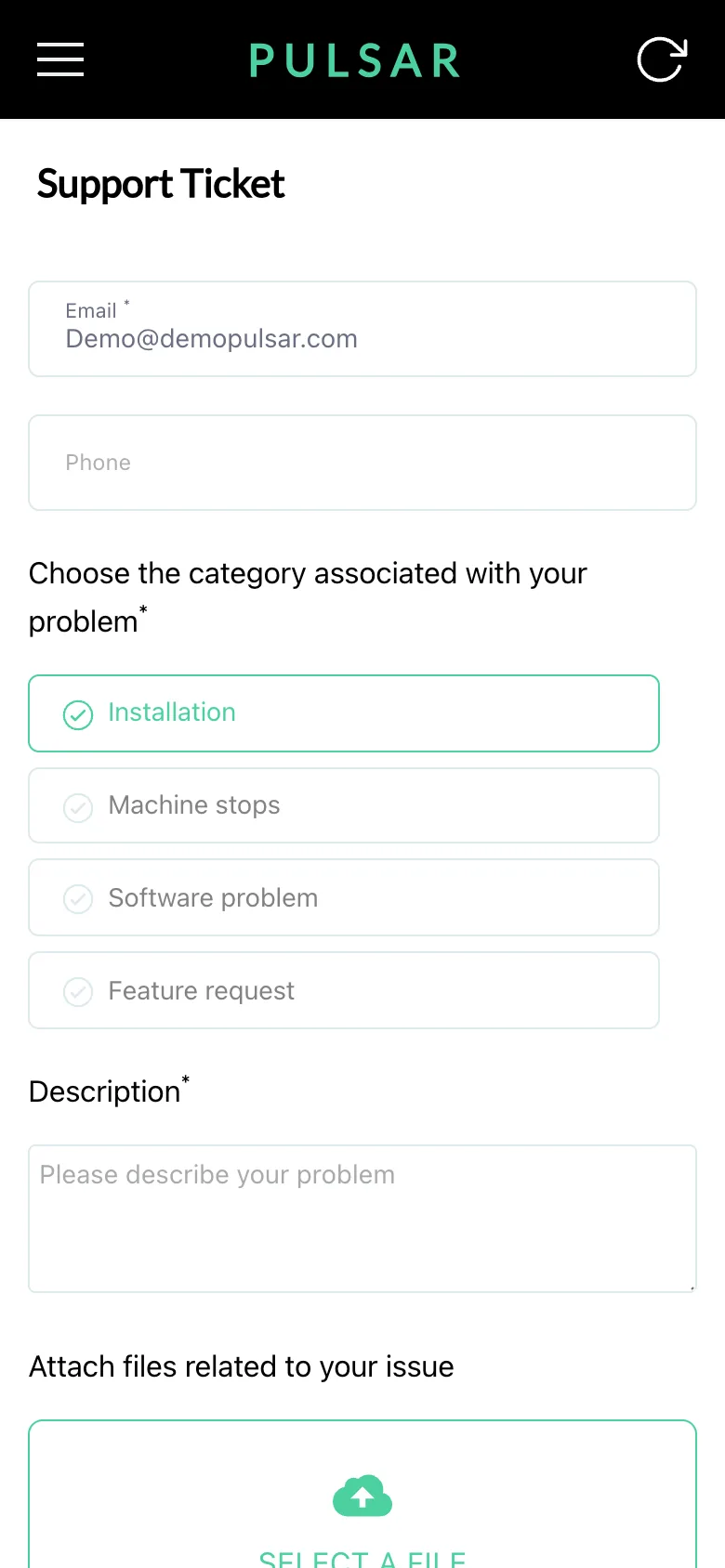
Fill in the form: choose Installation, Machine stops, Software problem or Feature request, describe the problem in detail in Description, attach any related files with SELECT A FILE, and tap SUBMIT.
If you're a machine operator raising a ticket from a tablet, always let your supervisor or your plant's Pulsar champion know, and include your supervisor's name in the ticket so we can add them to the response.
If you have trouble raising a support ticket or need help, contact your Customer Success representative.