Additional stop label
Add a custom third field to stop classification, such as supervisor or equipment, and choose its values for each machine.
The additional stop label is a field you can customize: you choose its name and use it for whatever your operation needs, such as supervisor name or equipment. It adds more detail to the information about your machines' stops. It's optional and doesn't affect Analytics.
Set up the label
Name the category
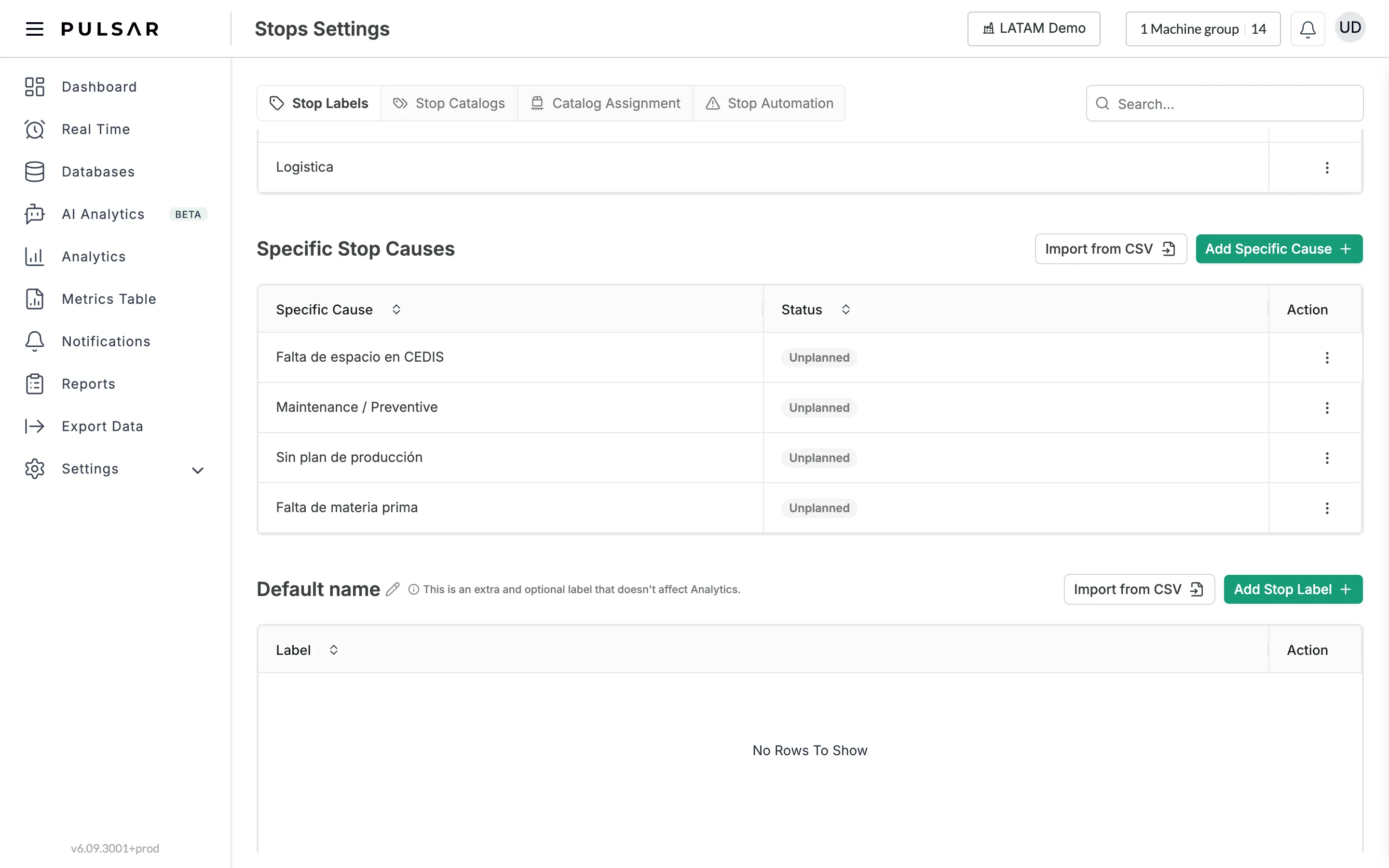
Go to Settings > Stops and open the Stop Labels tab. The additional label is the third table, below Specific Stop Causes. Its title is the label's name, Default name until you change it. Click the pencil icon next to the name, type a name for the category you want to add, for example the supervisor's name or equipment, and click the check mark to save it (or the X to cancel).
Add its values
Add the values one by one with Add Stop Label: type the value in Name and click Add Stop Label in the window. Or upload them from a .csv file with Import from CSV: download the sample file, fill it in, upload it and click Confirm.
Assign the values to machines
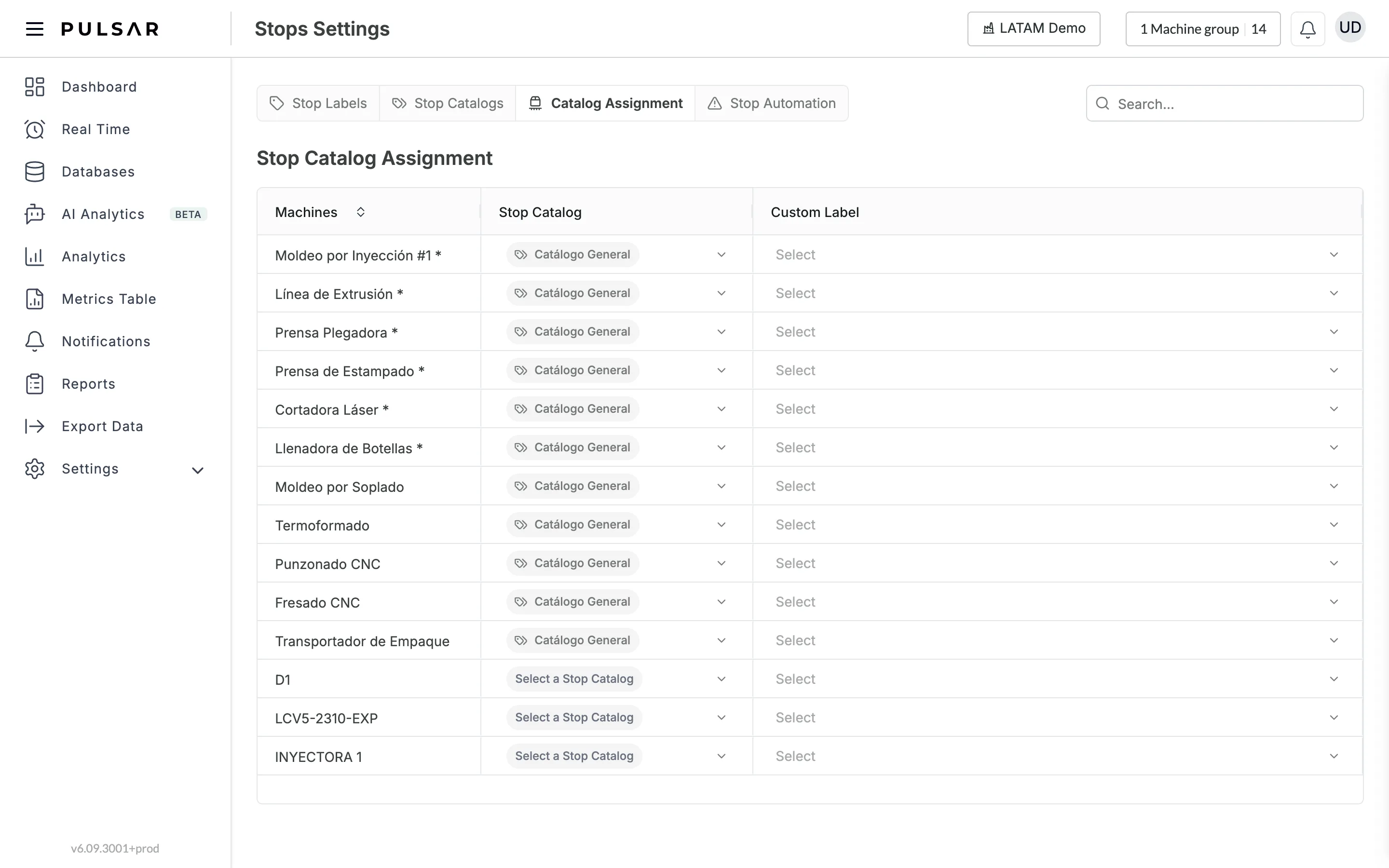
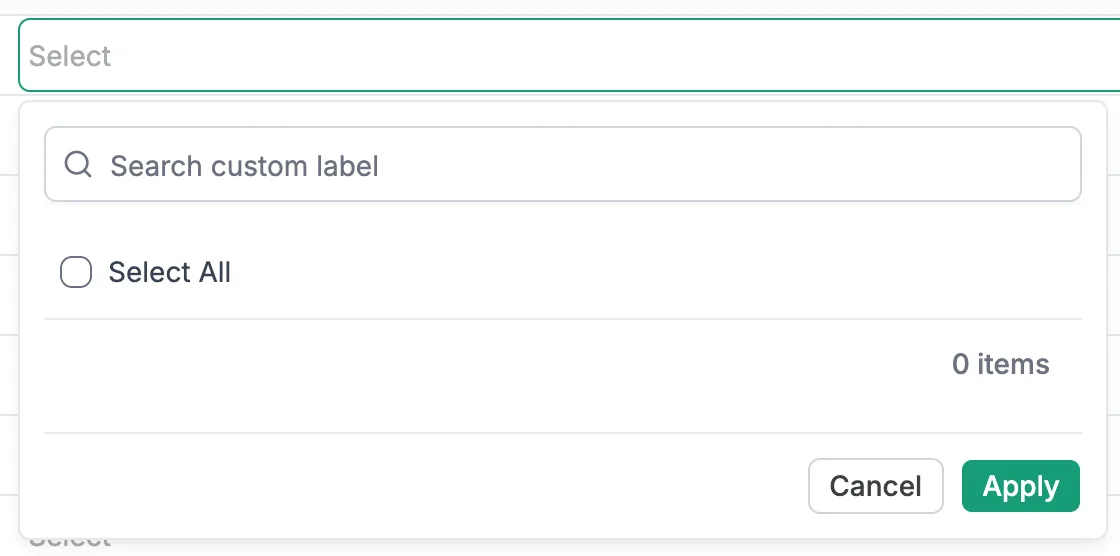
Open the Catalog Assignment tab. For each machine, click Select in the Custom Label column, tick the values that apply to it (or Select All) and click Apply.
When you classify stops, you'll find this field after General Cause and Specific Cause. It's also available in stop automation rules.
If you have trouble with the additional stop label or need help, contact your Customer Success representative or raise a support ticket from the app.