Input source
Check whether each machine's production comes from a sensor or is entered by hand, and which count it uses.
The Input Source tab shows, for each machine with production, where its production data comes from: counted automatically by a Pulsar sensor, or entered by people. To open it, go to Settings → Production and click the Input Source tab.
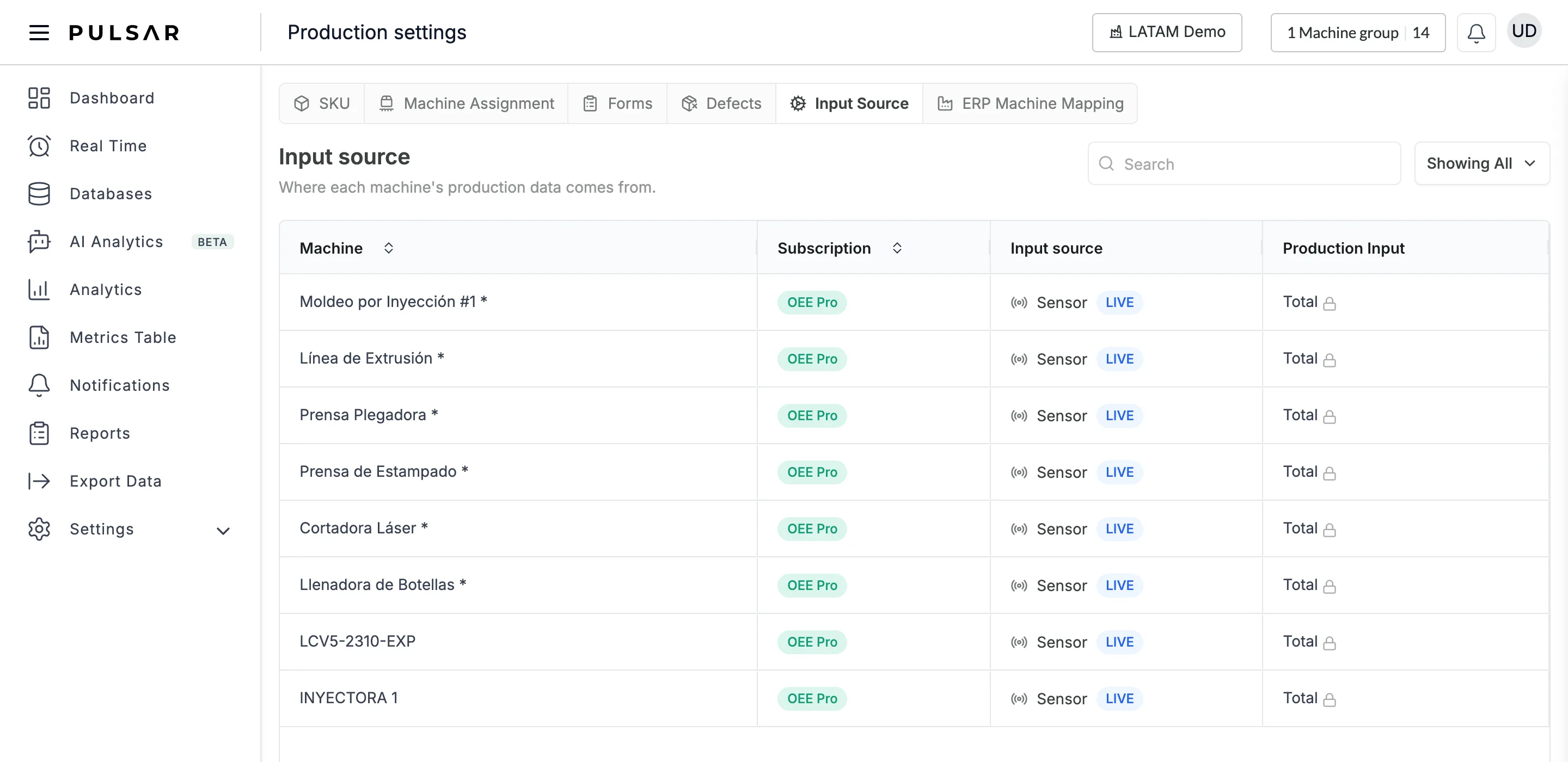
The columns
- Machine: the machine's name.
- Subscription: the machine's plan, OEE Pro or OEE Lite. The list shows only machines on one of these two plans.
- Input source: Sensor with a LIVE badge when a sensor counts the machine's production, or Manual with a FORM badge when people record it, on the Real Time card or in the mobile app.
- Production Input: the count Pulsar takes as the machine's production, Total or Correct.
Click the Machine or Subscription header to sort the table by that column.
Who can change the production input
The lock next to a Production Input value means you can't change it here. Hold the pointer over the lock to see why:
- On OEE Pro machines the value comes from the sensor: This is driven by a sensor and can't be manually overridden. Nobody can change it.
- On OEE Lite machines, only super-admins can change it, choosing Total or Correct from a drop-down in the cell. Everyone else sees the value with a lock and the message Only super-admins can edit this.
Find a machine
- Type in Search to show only the machines whose name contains that text.
- Click Showing All to open Filter by, with a switch for OEE Pro and one for OEE Lite. Turn one off to hide those machines, or use Hide all and Show all.
The list also follows the machine group selected in the top bar.
To set up SKUs, defects and production forms, see Production.