Operator planning
Plan which operator works each machine and shift once, and let Pulsar assign them automatically at the start of every shift.
Operator planning is for operations where the same worker stays on a machine for long periods, whether days, weeks or months. You plan the assignments once and Pulsar applies them automatically on every shift, which means less manual work in the platform and automatic operator tracking for more accurate, reliable analytics.
Video
Create an operator plan
Download the template
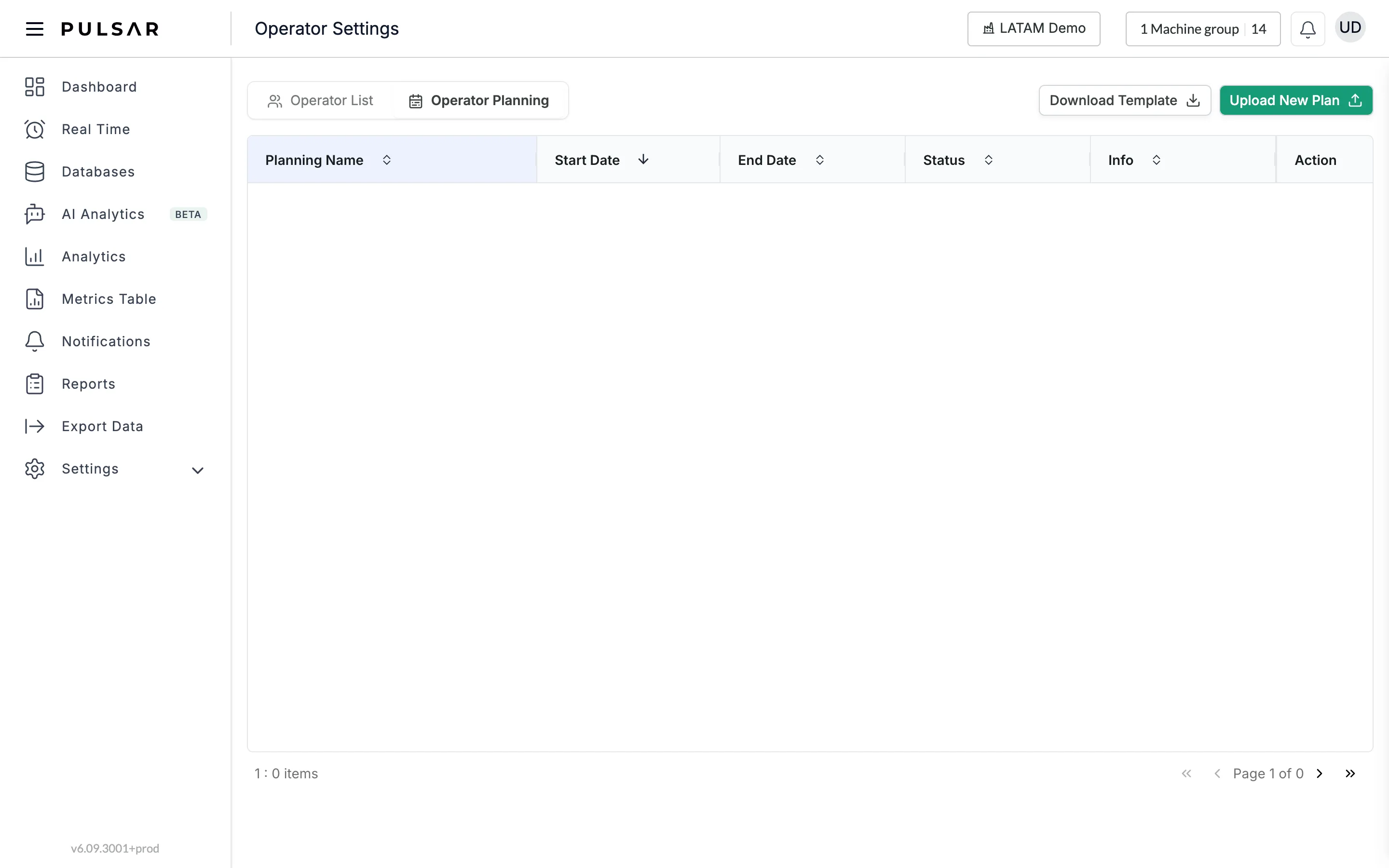
Go to Settings > Operators and open the Operator Planning tab. Click Download Template to get the .csv template.
The file has four columns: operator, machine, day and shift. Add one row per operator, machine, day of the week and shift, as in the template's sample row: John Doe, Machine 1, monday, morning:
- operator and machine: the names exactly as they appear in Pulsar.
- day: the day of the week, such as
monday. - shift:
morning,afternoon,nightorday.
Upload your plan
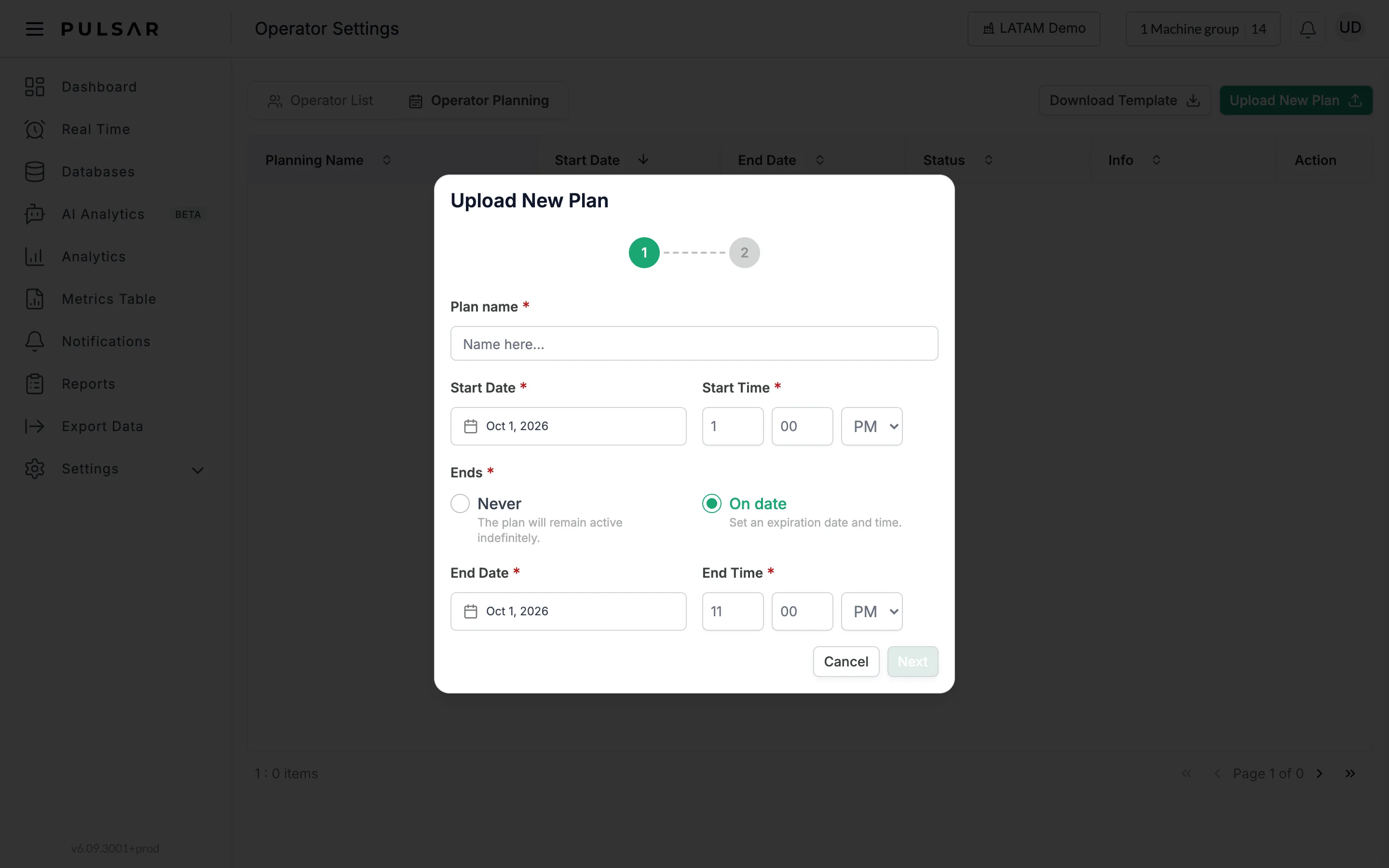
Click Upload New Plan. In step 1, give the plan a Plan name, a Start Date and a Start Time, and choose when it Ends:
- Never: the plan remains active indefinitely.
- On date: set an End Date and End Time for it to expire. They must be after the start date and time.
Click Next.
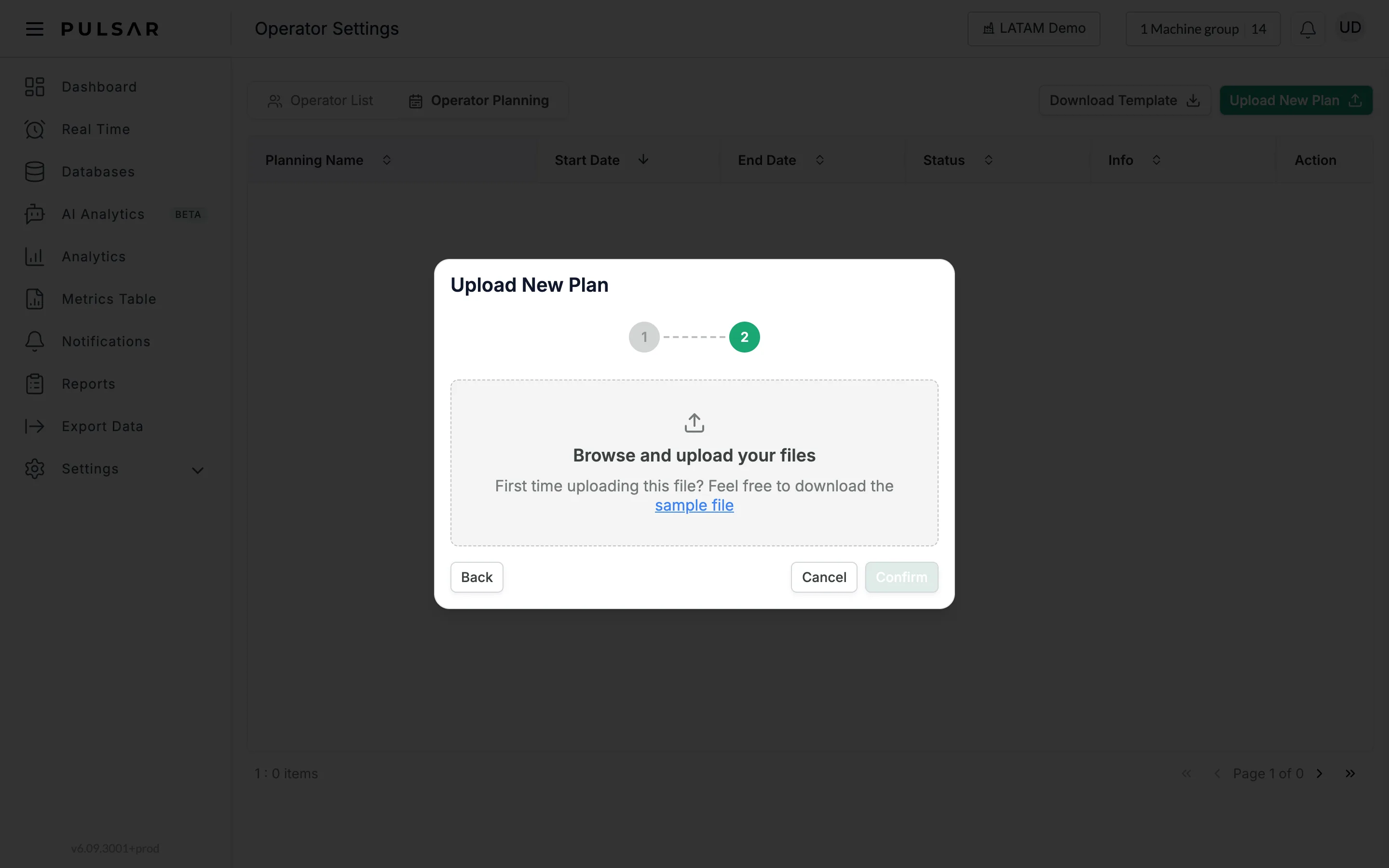
In step 2, select your .csv file under Browse and upload your files (if it's your first time, you can also download the sample file from there). Click Confirm to create the plan, or Back to change the plan details.
Pulsar assigns the operator
When a shift starts, from the date you specified, Pulsar automatically assigns the planned operator. The assignment shows up immediately in the Real Time view.
Change an assignment for one shift
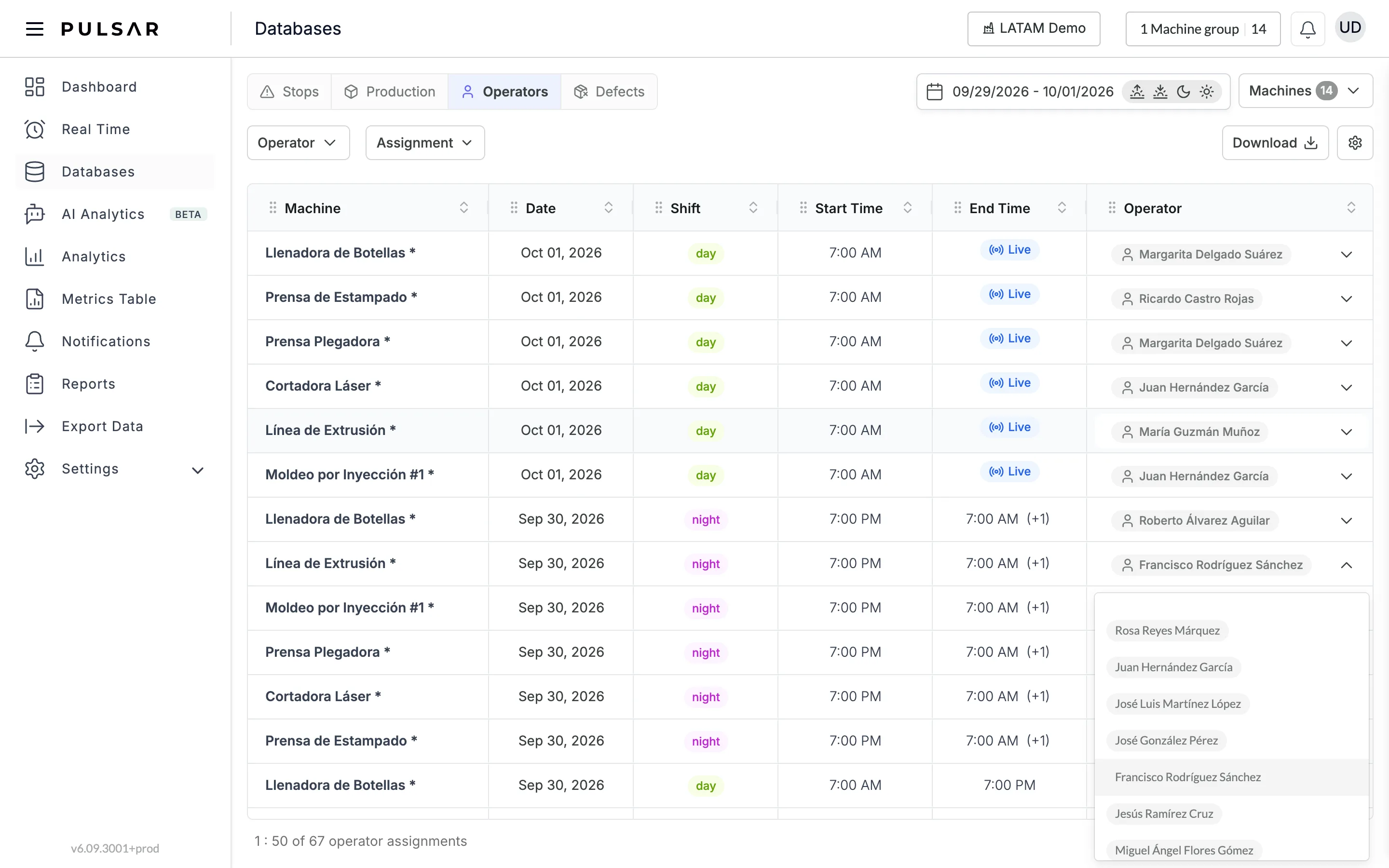
For a last-minute change, go to Databases in the main menu and open the Operators tab. It lists each machine's shifts with their Machine, Date, Shift, Start Time, End Time and Operator. Choose a different operator for that shift from the drop-down in the Operator column, without modifying your overall plan. Use the Operator and Assignment (Assigned or Unassigned) filters to find the shift.
If you have trouble setting up operator planning or need help, contact your Customer Success representative or raise a support ticket from the app.