Operators
Add, rename, import and export the operators your plant can assign to machines.
The operator list holds everyone who can be set as a machine's operator in Pulsar: on a Real Time card, in the mobile app and in Operator planning. To open it, go to Settings → Operators. The Operator Settings page opens on the Operator List tab.
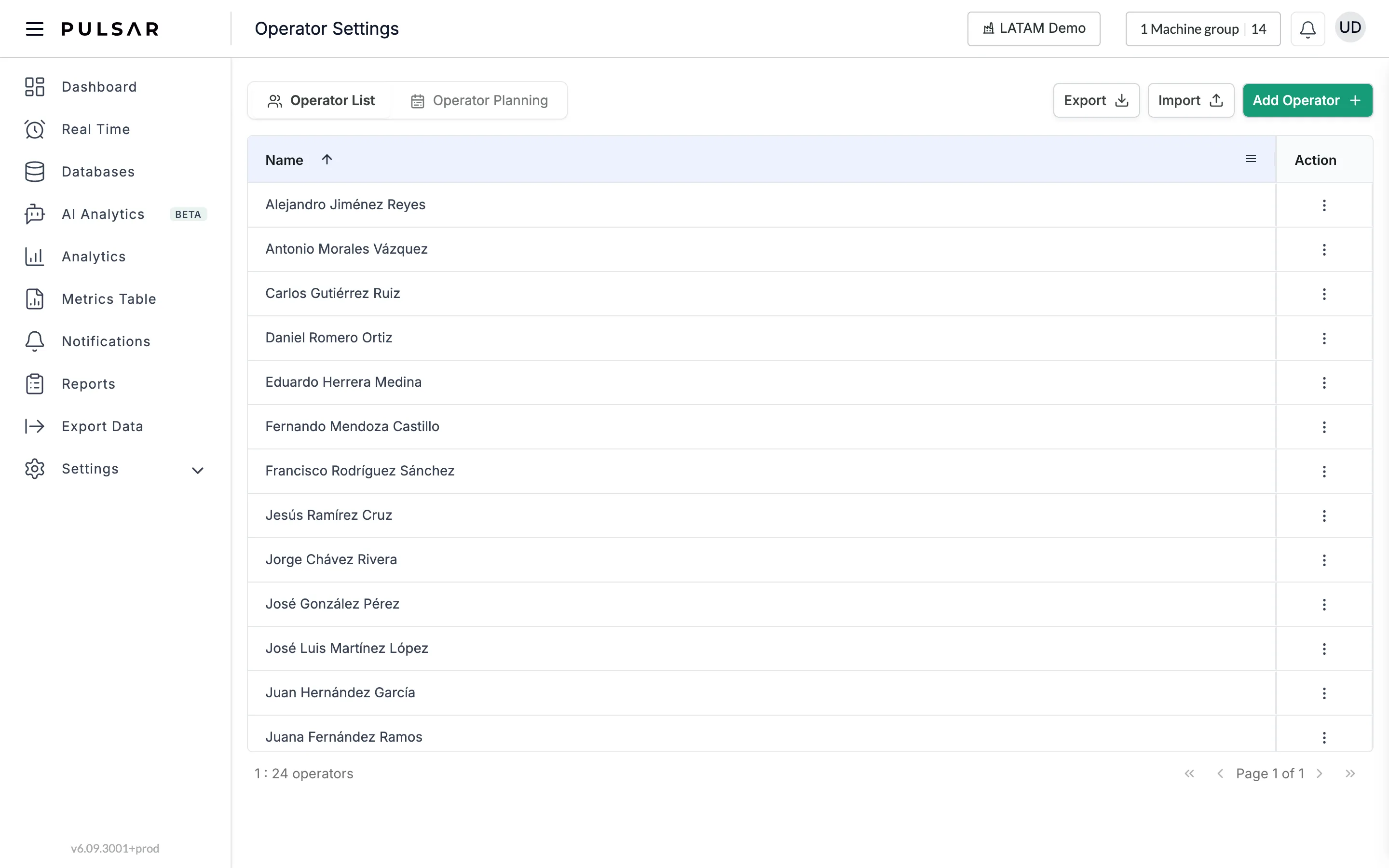
The operator list
The table shows each operator's Name, sorted alphabetically. Click the Name header to reverse the order, or the menu icon at its right to filter the list by a name that Contains the text you type. The count at the bottom left shows how many operators there are, and the arrows at the bottom right move between pages.
The three dots (⋮) in the Action column open Edit and Delete for that operator. Edit opens Update Operator, with the operator's First Name and Last Name; change them and click Confirm.
Add an operator
Click Add Operator.
Type the operator's First Name and Last Name.
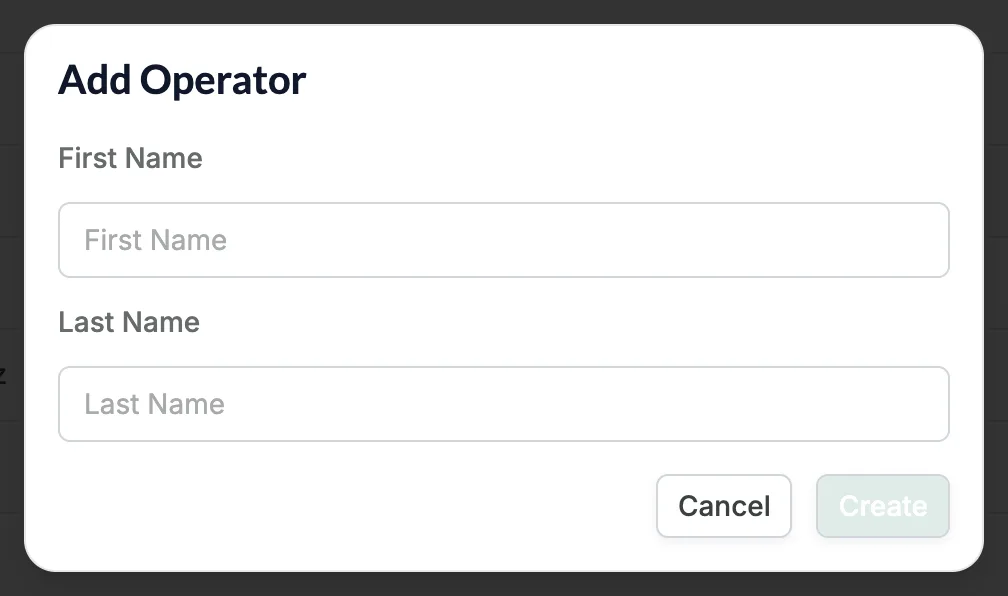
Click Create. Cancel closes the dialog without adding anyone.
Import operators from a file
To add many operators at once, load them from a CSV file.
Click Import. The Import Operators dialog opens.
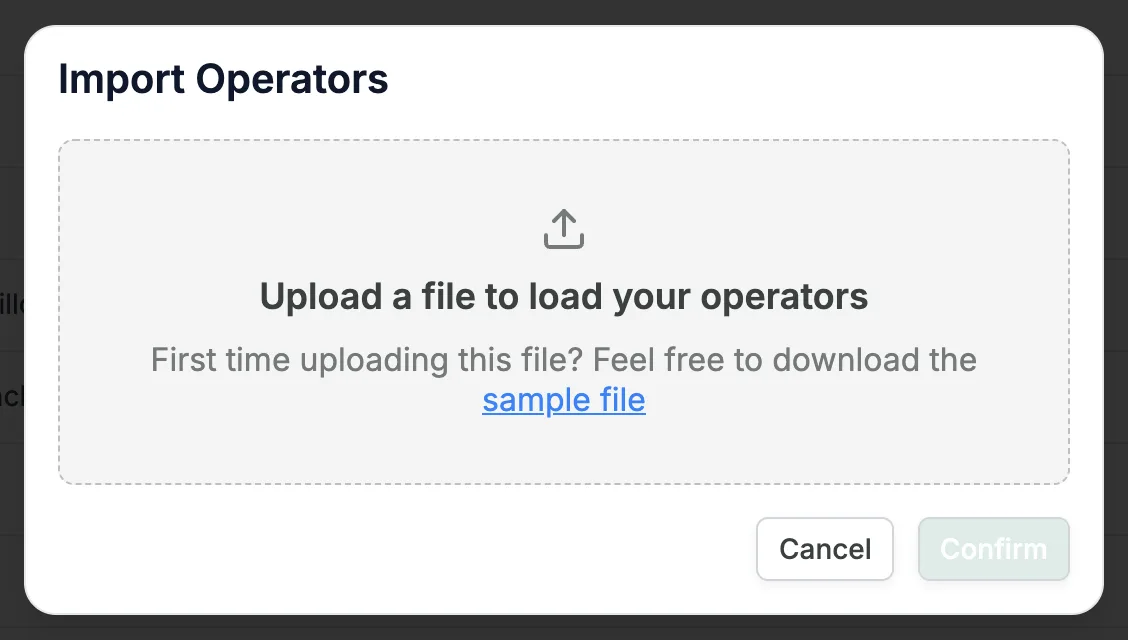
Click sample file to download the template, operator-import-template.csv. It has two columns, First Name and Last Name, and two example rows. Replace the examples with your operators, one per row.
Click the upload area and choose your file. Only .csv files are accepted.
Click Confirm to import the operators, or Cancel to close the dialog.
Export the list
Click Export to download the list as operators.csv, with one Name column and one row per operator.
To choose which operator works each machine and shift, see Operator planning.