Shift schedules
Create, modify and remove your machines' operating shifts, one at a time or in bulk.
In the shift schedule you add and modify the operating shifts of each machine. Go to Settings > Shift Schedule.
Video
Read the schedule
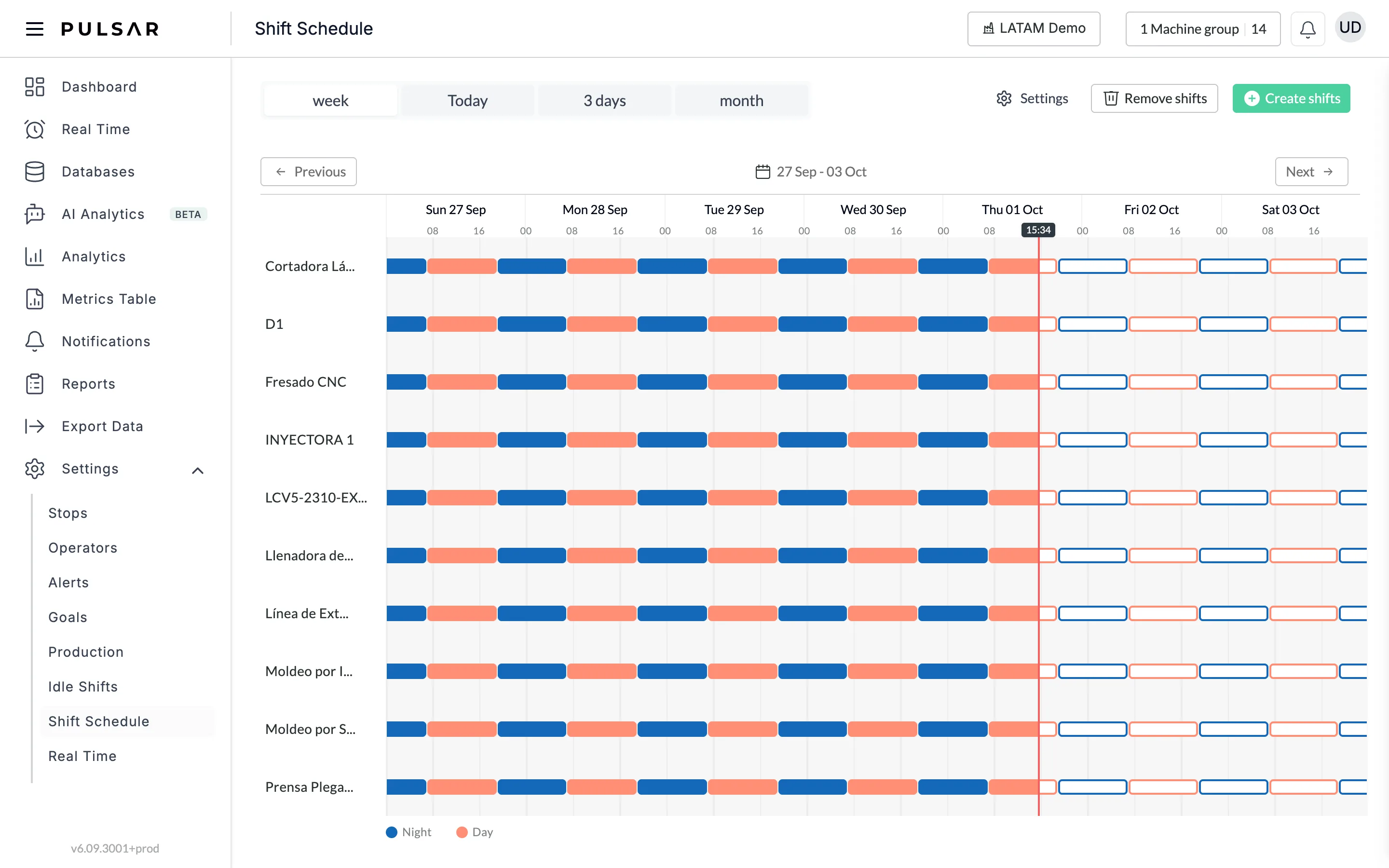
- Layout. Your machines are listed on the vertical axis, and the shifts progress over time along the horizontal axis. Each colored block is a shift: hover over it or click it to see the machine, the shift name, the date and the hours.
- Colors. Each shift name has its own color, shown in the legend under the schedule (for example Night and Day). Past shifts are filled blocks, upcoming shifts are outlined ones, and a red line marks the current time.
- Date. Choose how much time to show with week, Today, 3 days or month, and move back and forth with Previous and Next. Click the date range between them to pick dates on the calendar.
Create shifts
Click Create shifts at the top right of the page. The New shifts window opens.
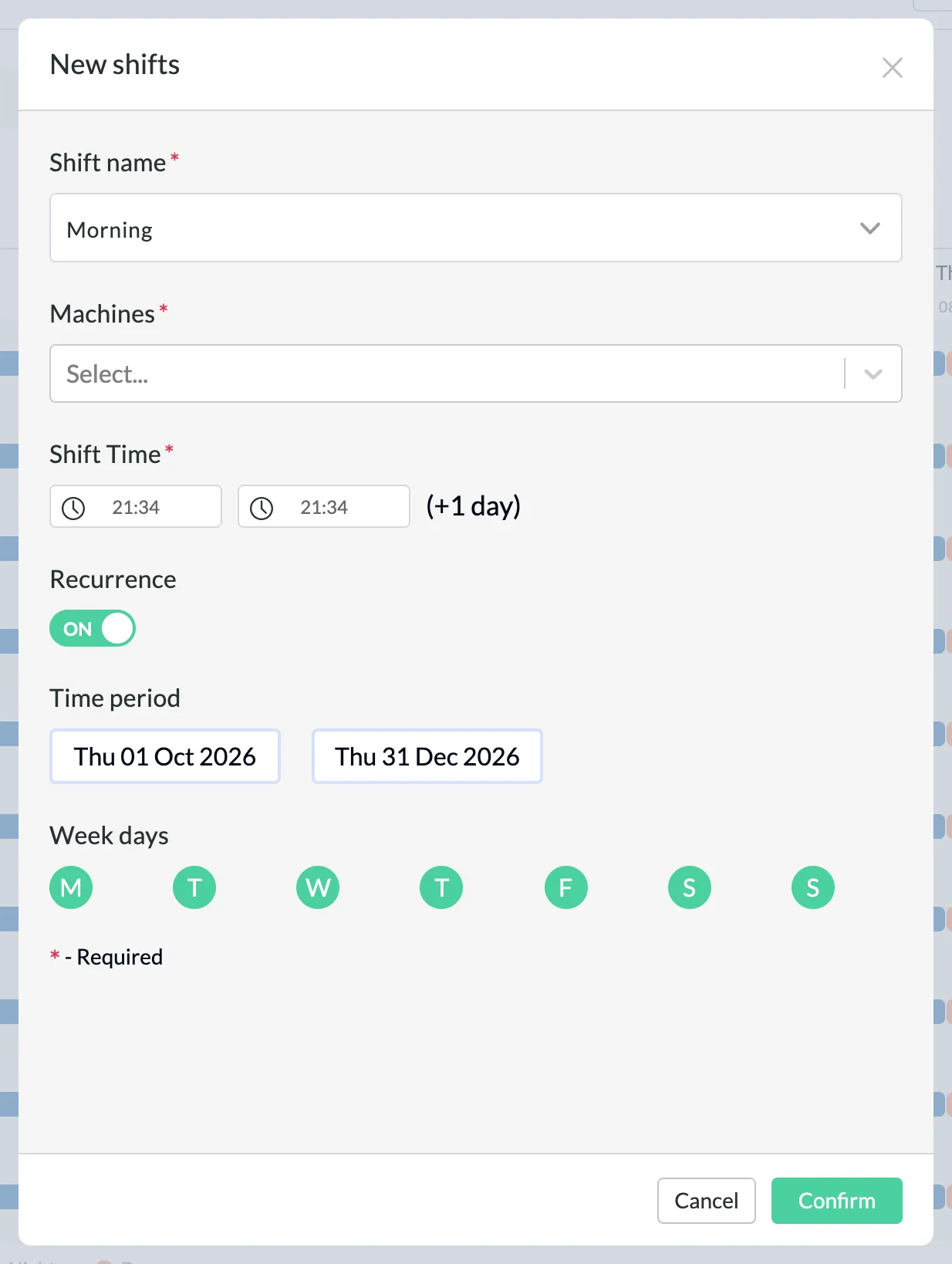
Fill in the fields (the ones marked with * are required):
- Shift name: choose Morning, Afternoon, Night or Day.
- Machines: the machines that operate during the shift you're creating.
- Shift Time: the shift's start and end times. If the shift ends after midnight, (+1 day) appears next to the times.
- Recurrence: OFF means the shift exists only once, on the Date you choose. ON means the shift repeats.
- Time period: if Recurrence is ON, the start and end dates between which the shift repeats.
- Week days: if Recurrence is ON, the days of the week on which the shift repeats (M, T, W, T, F, S, S).
Click Confirm.
Repeat this for each shift you want to create. In some plants shifts rarely change once created; in others they're scheduled and changed weekly or even daily in Pulsar.
Modify or delete a shift
To change or remove a single shift, click it on the schedule. A window shows the machine, the shift name, the date and the hours, with a pencil icon to modify it and a trash icon to delete it.

The pencil opens Edit Shift, where you change the shift's start and end date and time under Shift Time, then click Confirm.
Remove shifts in bulk
Click Remove shifts at the top right of the page, next to Create shifts.
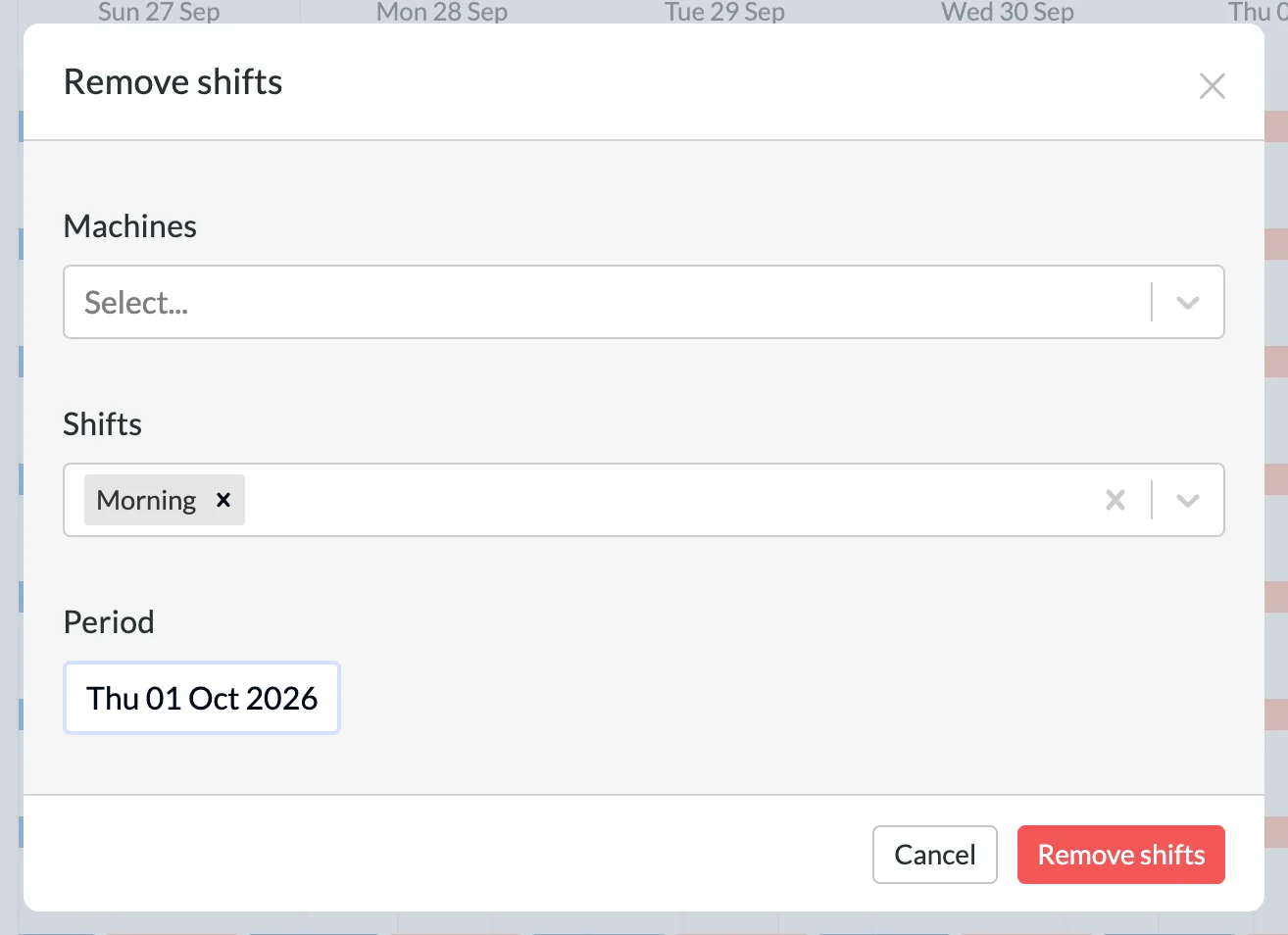
In the Remove shifts window, choose the Machines and the Shifts whose shifts you want to delete, and the Period (a date range on the calendar).
Click Remove shifts.
Choose which day a shift belongs to
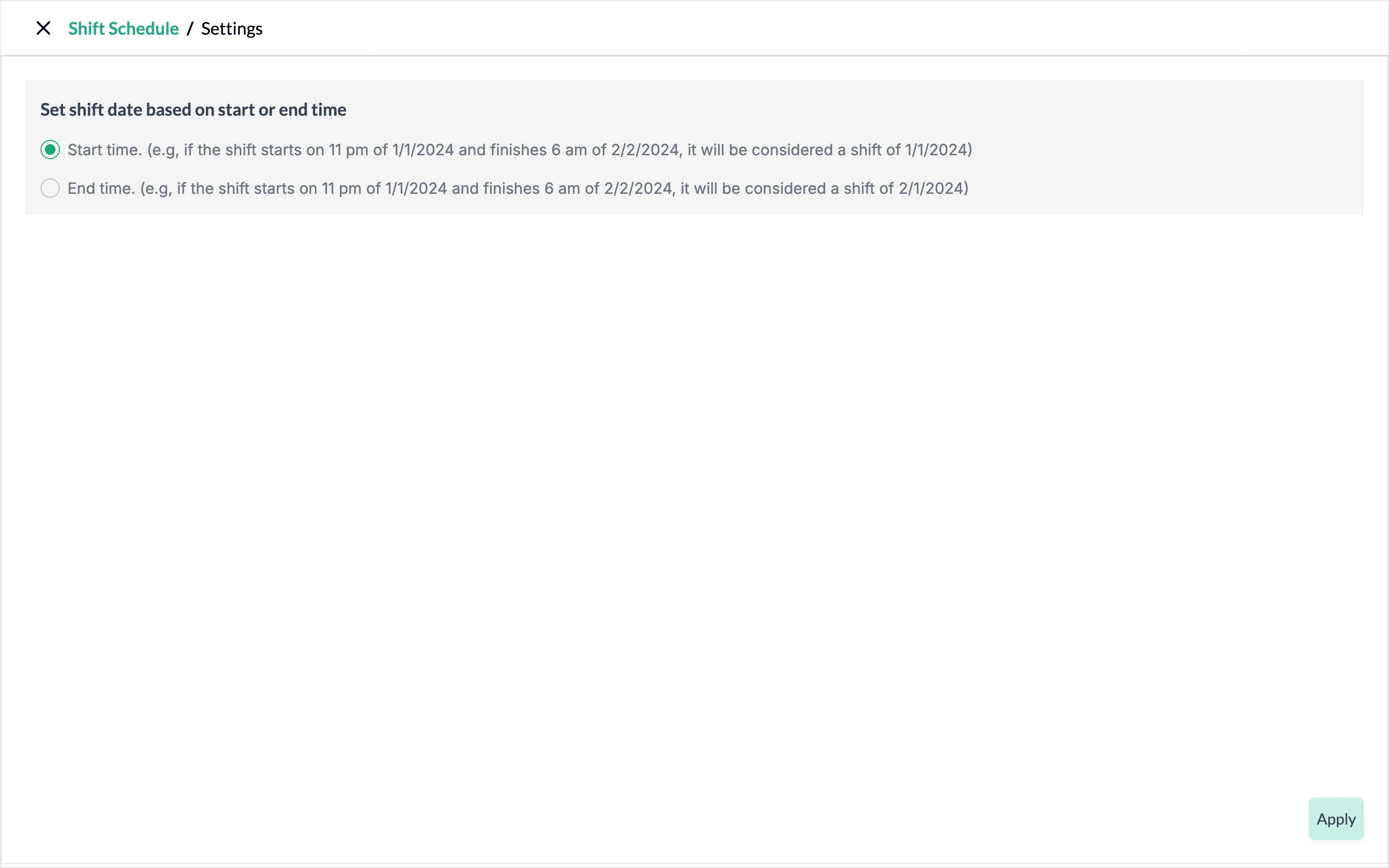
When a shift crosses midnight, Pulsar has to decide which date it belongs to. Click Settings at the top of the Shift Schedule page and, under Set shift date based on start or end time, choose:
- Start time: the shift counts on the day it starts. A shift from 11 pm on January 1 to 6 am on January 2 is a January 1 shift.
- End time: the shift counts on the day it ends. The same shift is a January 2 shift.
Click Apply to save the choice, or the X at the top left to go back without changing it.
If you have trouble setting up shift schedules or need help, contact your Customer Success representative or raise a support ticket from the app.