TV mode
Choose what the TV version of Real Time shows, how its slides change, and which information and metrics each machine card carries.
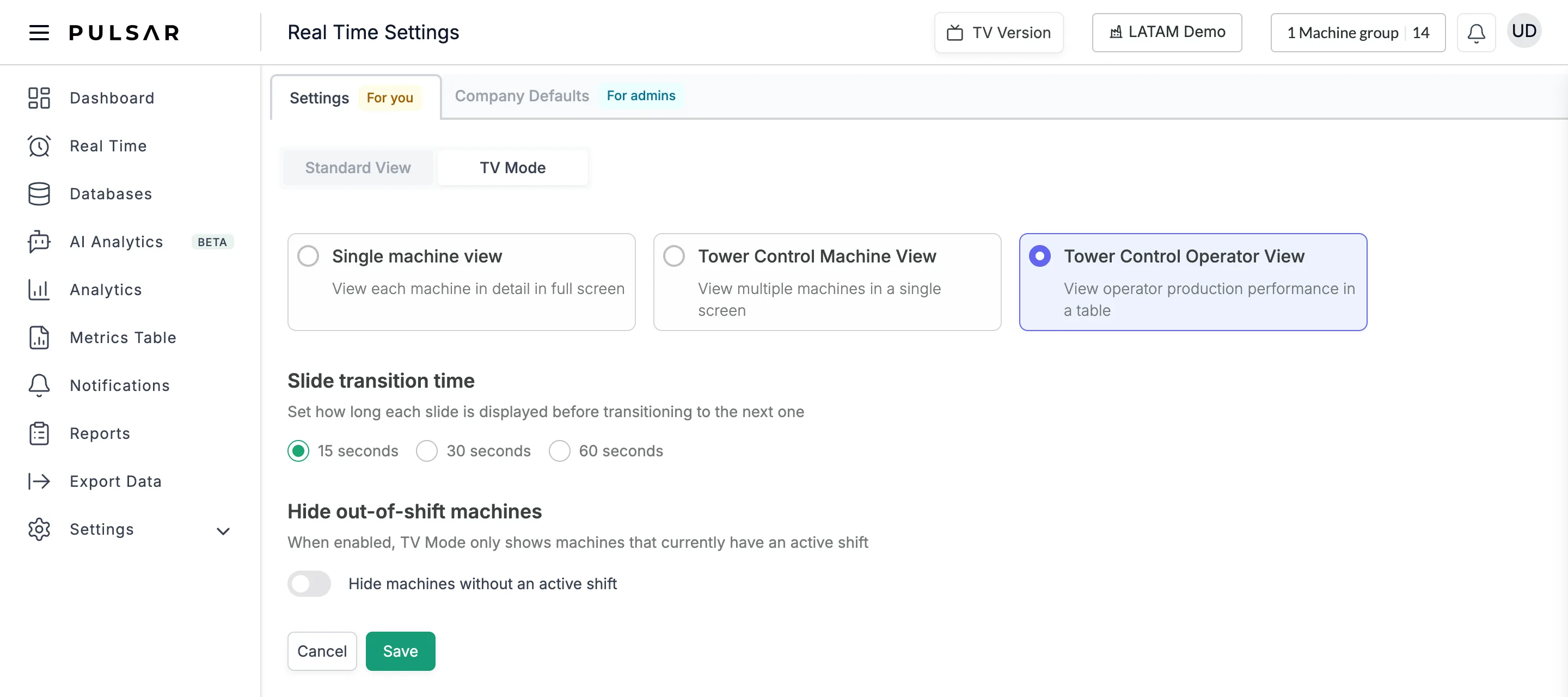
TV mode sets up the TV version of the Real Time page, the full-screen display for a plant TV. You choose one of three views, how long each slide stays on screen, and what each machine's card shows. To open it, go to Settings → Real Time and click TV Mode, next to Standard View.
The Real Time Settings page has two tabs. Settings, marked For you, changes the TV version only for you. Company Defaults, marked For admins, sets it for every user in your company.
Set up the TV version
Open the Settings tab to set it up for yourself, or Company Defaults to set it up for everyone, then click TV Mode.
Choose the view: Single machine view, Tower Control Machine View or Tower Control Operator View. The rest of the page changes with the view you pick, as described below.
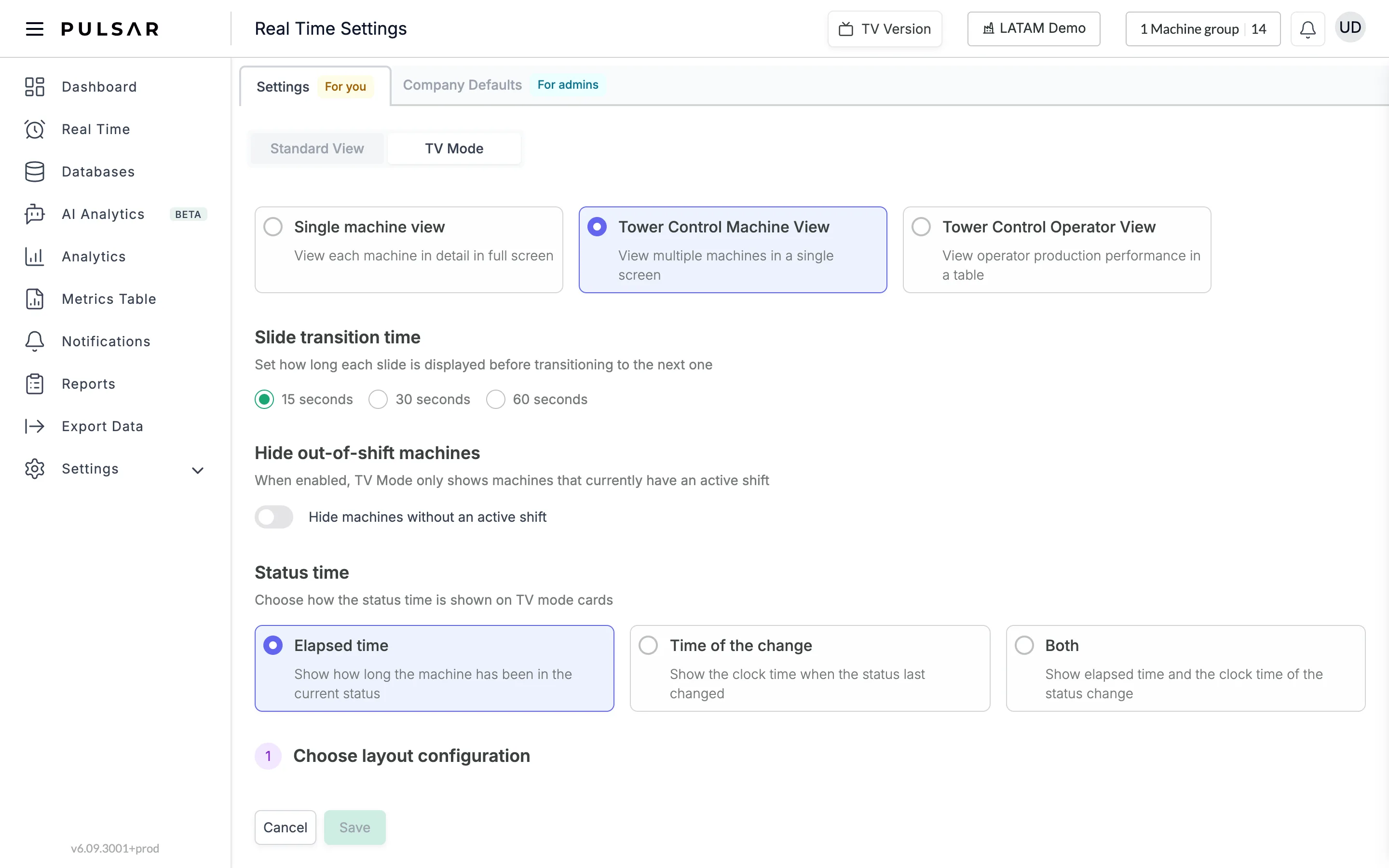
Choose the Slide transition time, how long each slide is shown before the next one: 15 seconds, 30 seconds or 60 seconds.
Under Hide out-of-shift machines, turn on Hide machines without an active shift if the TV should show only the machines that have a shift right now.
For the two machine views, choose the Status time shown on each card: Elapsed time (how long the machine has been in its current status), Time of the change (the clock time when the status last changed) or Both.
Fill in the numbered steps of your view: the layout, the card information, the machines and their metrics.
Click Save. On Company Defaults, click Save and Apply for All Users instead. Cancel discards your changes.
Single machine view
Each slide shows one machine in detail, full screen.
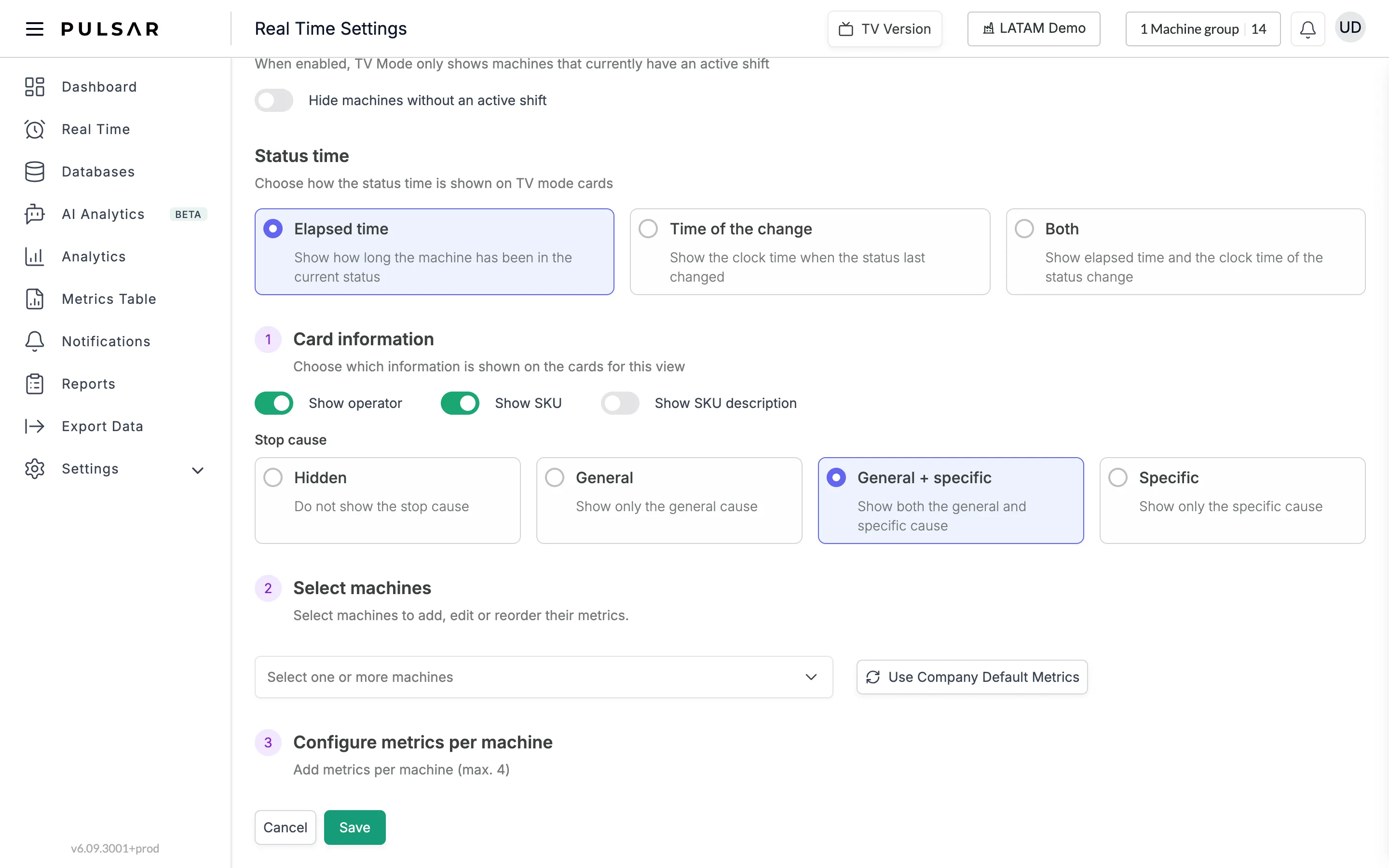
- Card information: turn on Show operator, Show SKU and Show SKU description as needed, and choose how much of the Stop cause to show: Hidden, General, General + specific or Specific.
- Select machines: choose the machines to set up. Use Company Default Metrics replaces their metrics with your company's defaults.
- Configure metrics per machine: up to 4 metrics for each machine, set up the same way as in Real time metrics.
Tower Control Machine View
Several machines share each slide, as a grid of cards. In step 1, Choose layout configuration, pick the grid: 2x2 (2 rows by 2 columns), 3x3 (3 rows by 3 columns), 6x2 (6 rows by 2 columns) or 8x4 (8 rows by 4 columns). The smaller the cards, the less each one can show, so Card information and the metric limit change with the layout:
| Layout | Card information | Metrics per machine |
|---|---|---|
| 2x2 | Show operator, Show SKU, Show SKU description and Stop cause, as in Single machine view | Up to 4 |
| 3x3 | Progress Display and up to 2 tags for each group of statuses | Up to 2 |
| 6x2 and 8x4 | One item for each group of statuses | None |
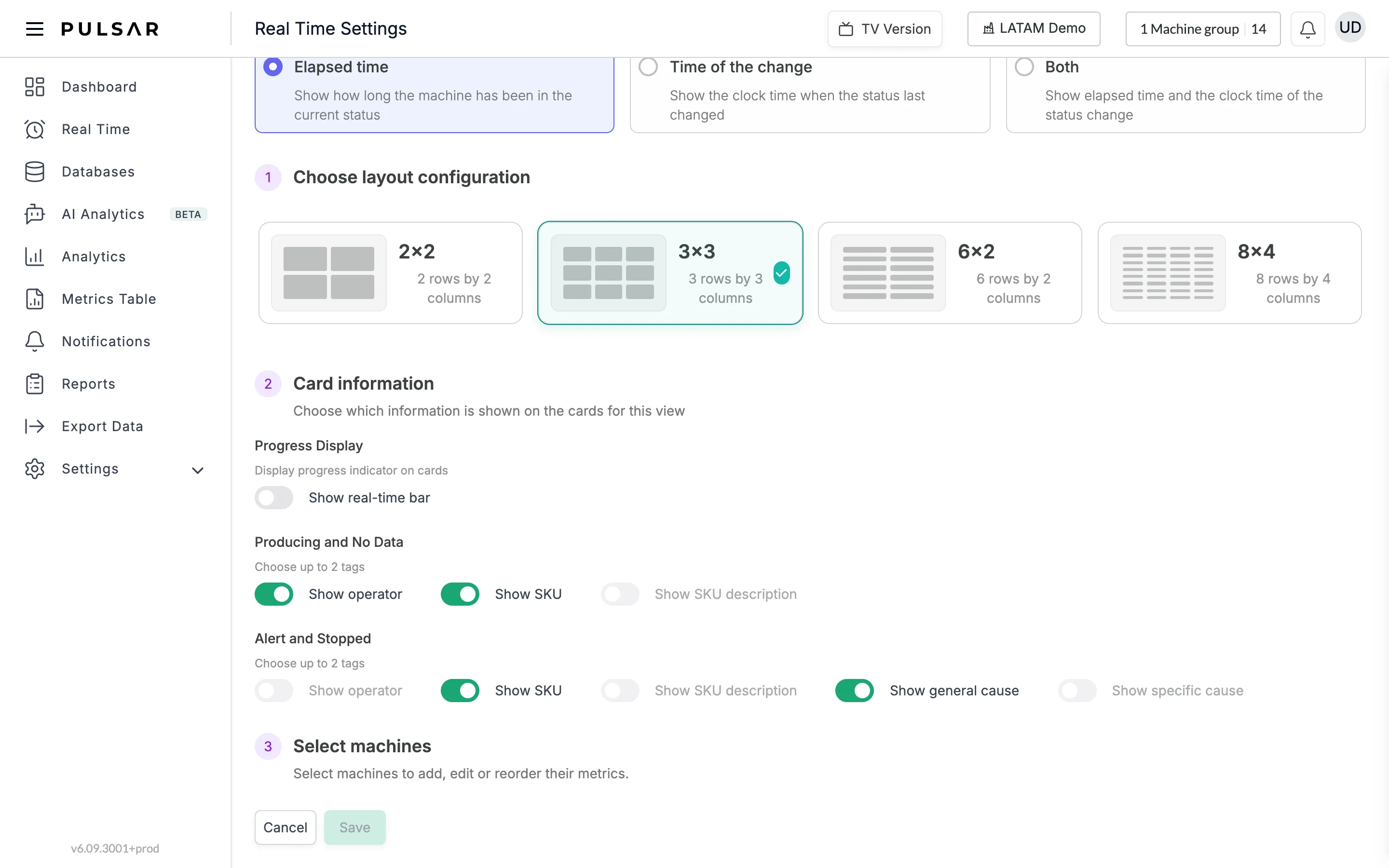
On 3x3, Card information has:
- Progress Display: Show real-time bar adds a progress indicator to the cards.
- Producing and No Data: up to 2 of Show operator, Show SKU and Show SKU description, for machines in those statuses.
- Alert and Stopped: up to 2 of Show operator, Show SKU, Show SKU description, Show general cause and Show specific cause.
Once you've turned on two in a group, the rest of that group's switches are greyed out.
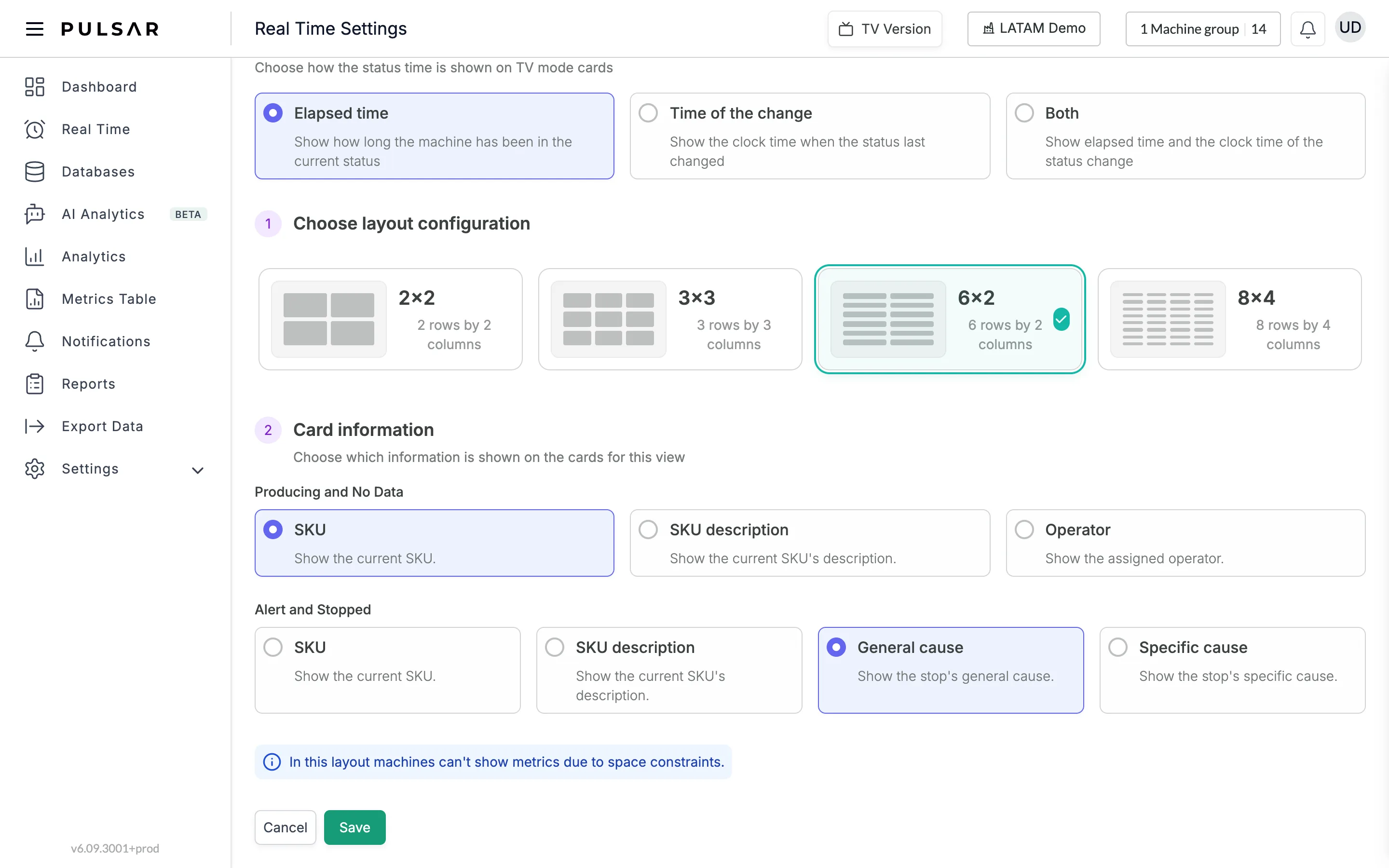
On 6x2 and 8x4, you choose a single item per group. Producing and No Data offers SKU, SKU description or Operator; Alert and Stopped offers SKU, SKU description, General cause or Specific cause. These layouts have no machine or metric steps: the page shows In this layout machines can't show metrics due to space constraints.
On 2x2 and 3x3, the steps that follow are Select machines and Configure metrics per machine, as in Single machine view.
Tower Control Operator View
Each slide shows your operators' production performance in a table. This view has only the Slide transition time and Hide out-of-shift machines settings.
Company defaults
On the Company Defaults tab, a notice reminds you that You are currently modifying the default settings for your company, and the page has the same TV Mode options. Save and Apply for All Users sets the metrics only for the machines you selected. If no machines are selected, it applies only the TV layout (Single Machine or Tower Control).
To open the TV version and see the result, see Real time and TV view. To choose the metrics on the Real Time page itself, see Real time metrics.