Install the app on a Fire TV Stick
Install the Pulsar TV app from the Amazon Appstore on a Fire TV Stick and sign in to show your plant's TV Version on a screen.
The Pulsar TV app, by PulsarML, shows your plant's real-time TV Version full screen on a television. You install it on a Fire TV Stick or Fire TV television from the Amazon Appstore, like any other app. It's free.
The app needs a Fire TV device that runs Android apps (the store listing asks for Android 7.0 or later). Some newer Fire TV models, such as the Fire TV Stick 4K Select, run Vega OS and can't install it. If you're buying a device for Pulsar, check this first.
Install Pulsar TV
On the Fire TV, open the search on the home screen and search for "Pulsar TV". You can also use the voice remote.
Select Pulsar TV, by PulsarML, and choose the option to get or download it.
When it finishes installing, open the app. You'll also find it later among your apps on the Fire TV.
You can also install it from a computer or phone: open the Pulsar TV listing on Amazon, sign in with the same Amazon account as the Fire TV, choose your device and click Get App. In Mexico, use amazon.com.mx.
Repeat these steps for each Fire TV Stick you use.
Sign in
The first time you open the app, it shows Pulsar's sign-in screen. Use the remote to select Email and Password, type with the on-screen keyboard, and select Login. Use the same Pulsar account you use on your computer, or Login with Okta or Login with Microsoft if your company signs in that way. You stay signed in the next time you open the app.
What the TV shows
After you sign in, the app opens the TV Version of the Real Time page, with the layout saved for your account, such as one machine at a time or a 2×2 grid. Each machine's card is colored by its status and shows its operator, SKU, stop status, up to four metrics and the shift timeline. When there are more machines than fit on one screen, the pages change on their own, with the page number at the bottom right and the date and time at the bottom left.
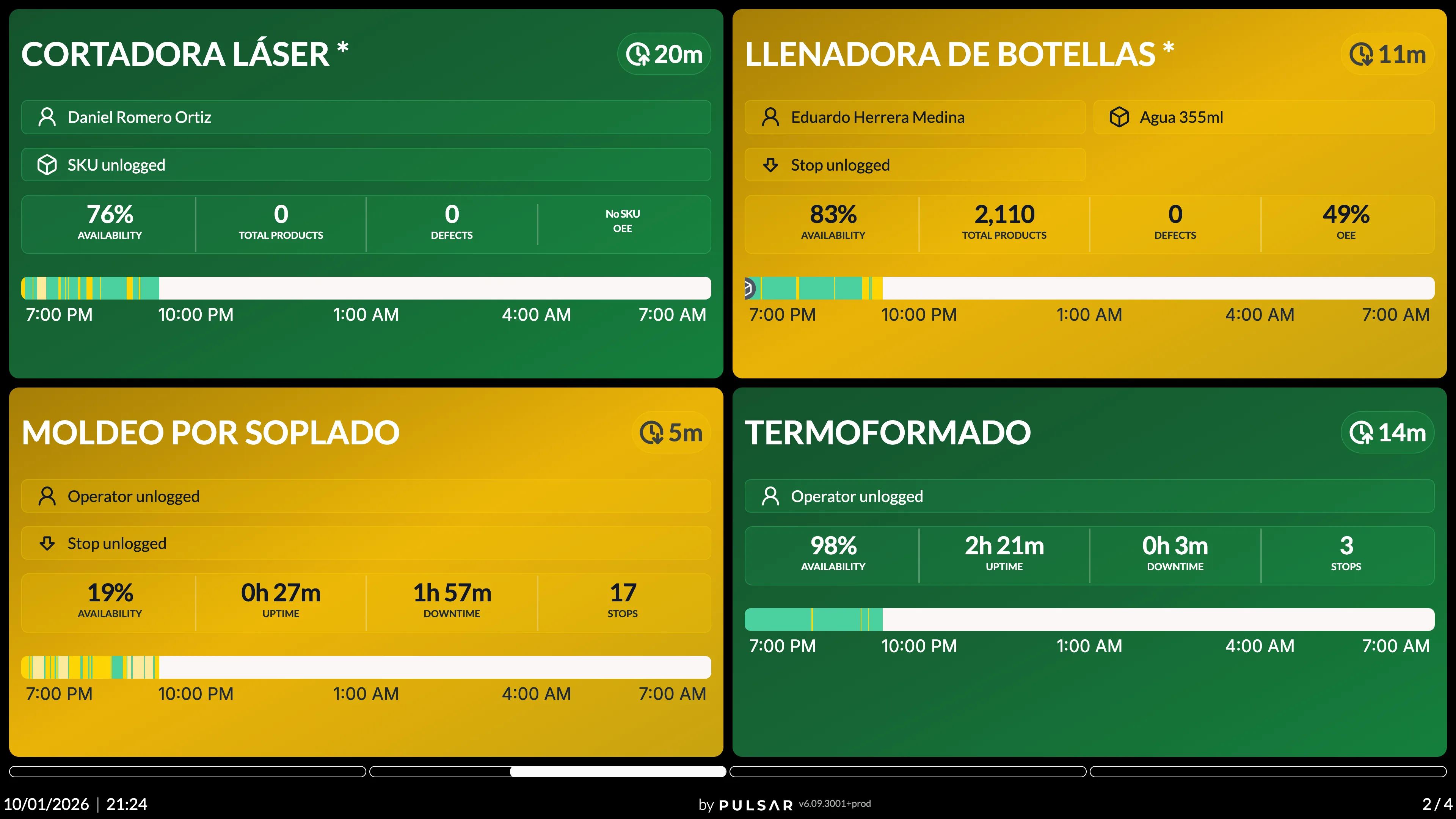
To choose the layout and the metrics it shows, use the TV Version settings on your computer. See TV version.
Every 2 hours the app reloads the page, so you may see it loading for a few seconds.
Keep the TV from turning off
The Pulsar TV app keeps the Fire TV Stick's screen on while it's open, and opens again on its own when the Fire TV Stick restarts, for example after a power cut or a system update. You don't need any developer settings for this.
The television's own power-saving settings are separate and vary by brand and model. Turn off its sleep mode or automatic shut-off from the TV's menu, so the screen doesn't turn off by itself.
If you have trouble installing the app or need help, contact your Customer Success representative or raise a support ticket from the app.